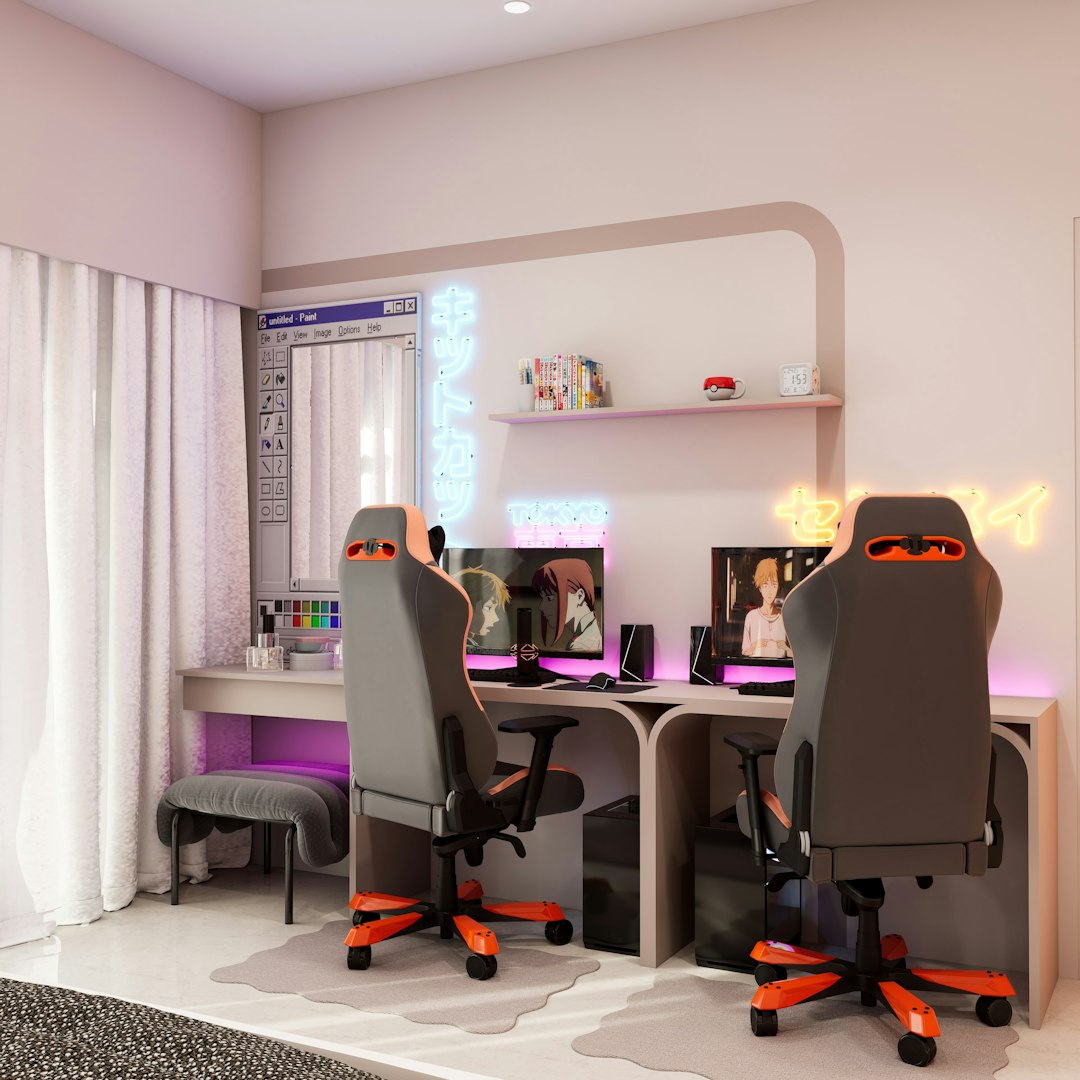
In competitive gaming, every frame per second and millisecond of latency can determine victory or defeat. While skill and practice remain paramount, optimizing your system ensures that technical limitations never hold you back from performing at your best. Whether you're competing in esports tournaments, climbing ranked ladders, or simply want the smoothest gaming experience possible, understanding performance optimization transforms good setups into exceptional ones.
Understanding Frame Rates and System Bottlenecks
Frame rate fundamentally impacts how responsive games feel. Higher FPS provides smoother motion, reduces input lag, and gives competitive players crucial advantages in fast-paced scenarios. While 60 FPS was once considered sufficient, competitive gamers now target 144 FPS or higher to match high-refresh monitors that display motion with exceptional clarity.
System bottlenecks occur when one component limits overall performance. GPU bottlenecks are most common—when your graphics card cannot render frames fast enough for your CPU to process. CPU bottlenecks happen in processor-intensive games or high-refresh scenarios where the CPU cannot feed the GPU quickly enough. Identifying your system's bottleneck determines where optimization efforts should focus.
Monitoring tools like MSI Afterburner, HWiNFO, or built-in performance overlays reveal component utilization during gameplay. If GPU usage sits near 100% while CPU usage remains lower, your graphics card limits performance. Conversely, low GPU usage with high CPU usage indicates a processor bottleneck. Understanding these metrics guides intelligent optimization decisions rather than random settings changes.
Graphics Settings Optimization
Not all graphics settings impact performance equally. Some create dramatic visual differences with minimal performance cost, while others tank frame rates for barely noticeable improvements. Prioritizing settings strategically maintains visual quality while maximizing performance for competitive advantage.
Resolution affects performance more than any other setting. Dropping from 4K to 1440p can nearly double frame rates, while 1080p provides even greater performance headroom. For competitive gaming, many players choose 1080p on high-refresh monitors rather than higher resolutions at lower refresh rates, prioritizing motion clarity over visual fidelity.
Anti-aliasing smooths jagged edges but carries significant performance costs, especially MSAA and SSAA. TAA provides better performance with acceptable quality, while FXAA offers minimal visual improvement with negligible performance impact. Competitive players often disable anti-aliasing entirely, accepting visual roughness for maximum frame rates.
Shadow quality dramatically impacts performance while contributing relatively little to competitive gameplay. Lowering shadow settings or disabling dynamic shadows can free substantial GPU resources. Similarly, ambient occlusion, motion blur, and depth of field provide atmospheric visuals but hinder competitive performance—many professionals disable these effects entirely.
Texture quality usually impacts VRAM usage more than frame rate. If your GPU has sufficient VRAM, high-quality textures provide visual improvements without performance penalties. However, exceeding VRAM capacity causes stuttering and performance crashes, so monitor usage and adjust accordingly. Competitive players balance texture quality with available VRAM to avoid performance degradation.
Windows Optimization for Gaming
Windows includes numerous background processes and services that consume system resources unnecessarily during gaming. Optimizing your operating system recovers these resources, improving both frame rates and consistency. Start by disabling visual effects through System Properties—animations and transparency effects waste processing power better dedicated to games.
Game Mode in Windows 10 and 11 prioritizes gaming processes and disables notifications during gameplay. While results vary between systems, enabling Game Mode generally improves performance stability by preventing background tasks from interrupting gaming workloads. Experiment with it enabled and disabled to determine impact on your specific system.
Disable unnecessary startup programs through Task Manager. Many applications automatically start with Windows and run persistently in the background, consuming CPU cycles and RAM. Keep only essential startup items like graphics drivers and peripheral software, disabling everything else to free resources for gaming.
Windows Update can cause performance issues by downloading updates during gameplay or triggering automatic restarts. Configure update settings to download updates only during specified hours and disable automatic restarts. While staying updated is important for security, controlling when updates occur prevents them from interrupting gaming sessions.
Power plans significantly impact performance. Windows' default "Balanced" plan throttles components to save energy, reducing performance. Switch to "High Performance" or create custom plans that prevent CPU throttling and maintain maximum clock speeds. For laptops, be aware that high-performance plans reduce battery life substantially.
Network Optimization for Online Gaming
Network performance affects online gaming as significantly as hardware performance. High latency, packet loss, and jitter create lag that makes competitive gaming frustrating or impossible. Optimizing your network connection reduces these issues, creating responsive online experiences crucial for competitive success.
Wired ethernet connections provide superior stability and lower latency compared to WiFi. Even modern WiFi 6 connections introduce latency variability that ethernet avoids. For serious competitive gaming, running an ethernet cable directly from your PC to your router eliminates wireless interference and provides consistent low-latency connections.
Quality of Service (QoS) settings in router configuration prioritize gaming traffic over other network activities. If family members stream video or download files while you game, QoS ensures your gaming packets receive priority, maintaining low latency even when bandwidth is contested. Configure QoS through your router's admin interface, setting gaming traffic to highest priority.
Background applications consuming bandwidth impact gaming performance. Disable automatic updates, cloud syncing, and streaming applications during competitive sessions. Monitor network usage through Task Manager to identify bandwidth-hungry applications running unnoticed in the background. Even modest background bandwidth usage can increase latency in competitive scenarios.
DNS server selection affects connection stability and speed. ISP-provided DNS servers are often slower than alternatives like Cloudflare (1.1.1.1) or Google (8.8.8.8). Changing DNS servers in network settings can reduce lookup times and improve overall connection responsiveness, though impact varies by location and ISP quality.
Hardware Tweaking and Overclocking
Hardware operates within safe margins that leave performance on the table. Carefully tweaking component settings extracts additional performance without purchasing new hardware. However, improper overclocking can damage components or cause instability, so approach carefully and research thoroughly before making changes.
GPU overclocking increases graphics card performance by raising core and memory clock speeds. Tools like MSI Afterburner provide user-friendly interfaces for adjusting clocks and monitoring temperatures. Start with modest increases (+50 MHz core, +100 MHz memory), test stability in games and benchmarks, then gradually increase until instability appears or temperatures become concerning.
Undervolting reduces component power consumption and temperatures while maintaining performance. Modern GPUs and CPUs often run higher voltages than necessary for stable operation. Lowering voltage reduces heat output, allowing for better sustained boost clocks and quieter fan operation. This technique is particularly valuable for laptop gaming, where thermal constraints often limit performance.
RAM overclocking improves system responsiveness and can boost frame rates in CPU-limited scenarios. Enable XMP (Intel) or DOCP (AMD) profiles in BIOS to run memory at rated speeds rather than default specifications. Advanced users can manually tune timings for additional performance, though this requires significant knowledge and stability testing to avoid system crashes.
Monitor overclocking extends refresh rates beyond official specifications. Many monitors accept higher refresh rates than advertised—a 144Hz monitor might reach 165Hz or higher with custom settings. Create custom resolutions through graphics driver control panels, gradually increasing refresh rate until instability appears, then back off slightly for a safe overclock that provides additional smoothness.
Peripheral Optimization
Gaming peripherals require proper configuration to deliver optimal performance. Default settings often prioritize general use over competitive gaming, leaving performance improvements accessible through software configuration and physical adjustments.
Mouse settings dramatically affect aiming precision. Disable mouse acceleration in Windows and game settings—this feature makes cursor speed non-linear, destroying muscle memory crucial for consistent aim. Set Windows pointer speed to 6/11 (middle position) for 1:1 mouse movement, then adjust sensitivity in-game to find comfortable settings.
Polling rate determines how frequently your mouse reports position to your PC. Higher rates (1000Hz vs 125Hz) provide more responsive cursor movement with reduced input lag. Modern gaming mice support high polling rates through software configuration—ensure yours is set to maximum for competitive gaming. Similarly, gaming keyboards benefit from high polling rates for responsive key registration.
DPI (dots per inch) affects mouse sensitivity and precision. Higher DPI allows faster cursor movement but can reduce precision for small adjustments. Most competitive players use 400-1600 DPI paired with low in-game sensitivity for precise aim control. Experiment within this range to find comfortable settings that balance speed and precision for your playstyle.
Monitor positioning and settings affect visual clarity and eye strain. Position monitors at arm's length with the top of the screen at or slightly below eye level. Adjust brightness to comfortable levels—too bright causes eye strain, too dim makes details difficult to see. Many competitive players reduce brightness below defaults for reduced eye fatigue during long sessions.
Game-Specific Optimization
Each game has unique performance characteristics requiring specific optimization approaches. Research community resources, Reddit threads, and YouTube guides for game-specific tips that address particular titles' quirks and optimization opportunities.
Config file editing unlocks settings unavailable through in-game menus. Many games store advanced configuration options in text files within game directories. Editing these files allows disabling hidden performance-hungry features, adjusting FOV beyond in-game limits, or enabling competitive visual modes. Always backup original files before editing and research specific game communities for recommended tweaks.
Launch options in Steam and other platforms pass commands to games at startup. Commands can disable intro videos, set thread priority, adjust memory allocation, or force DirectX versions for better performance. Research popular launch options for specific titles—competitive communities often share optimal configurations that provide performance advantages.
Driver optimization matters significantly for consistent performance. Keep graphics drivers updated, but be aware that the newest drivers aren't always the best—sometimes recent updates introduce bugs or performance regressions. When drivers work well, consider staying on that version rather than updating immediately. Community forums often identify problematic driver versions to avoid.
Maintaining Optimal Performance
Performance optimization isn't a one-time process but requires ongoing maintenance. Systems accumulate clutter, drivers update, and games receive patches that change performance characteristics. Regular maintenance preserves optimized performance over time.
Dust accumulation degrades thermal performance, causing components to throttle under sustained load. Clean your PC every 3-6 months using compressed air, focusing on fans, heatsinks, and intake filters. Improved airflow maintains lower temperatures that allow components to sustain higher clock speeds, preserving performance as systems age.
Storage optimization maintains fast load times and prevents stuttering. SSDs perform best with available free space—aim to keep at least 20% capacity free. Defragmentation is unnecessary for SSDs but benefits mechanical hard drives if you still use them for game storage. Regularly uninstall games you've finished to free space and reduce clutter.
Thermal paste degradation affects CPU and GPU temperatures over time. Consider reapplying thermal paste every 2-3 years, especially for older systems experiencing temperature increases. Quality thermal paste can reduce temperatures by 5-10°C, allowing better sustained performance and reduced fan noise.
Performance optimization combines hardware knowledge, software configuration, and ongoing maintenance to extract maximum gaming performance from your system. While new hardware eventually becomes necessary, proper optimization extends component lifespan and ensures you're getting full value from your investment. Portuguese gamers competing internationally on European servers particularly benefit from network optimization, ensuring their skills shine without technical limitations holding them back. Whether pursuing professional esports or simply enjoying competitive gaming, these optimization techniques provide the technical foundation for performing at your absolute best.